Setup
This guide walks you through connecting Qezaro Orbit to your customers' Microsoft environments. The process takes about 10–15 minutes and consists of five steps.
| # | Step | What you'll do |
|---|---|---|
| 1 | Add Entra App | Register or use a Qezaro-created Microsoft Entra App |
| 2 | Add Customers | Add customer tenants individually, in bulk, or via fetch |
| 3 | Authorize App | Authorize the Entra App in each customer's BC Admin Center |
| 4 | Grant Consent | Grant admin consent per customer (or ask them to) |
| 5 | Run Sync | Trigger a sync to start populating data |
Before you begin
Make sure you have:
- Access to the Microsoft Entra admin center (required only if using your own Entra App)
- Your customers' Tenant IDs
- A Dynamics 365 Administrator or Cloud Application Administrator role in each customer's tenant (for the authorization step)
Step 1 — Add an Entra App
Orbit uses a Microsoft Entra App to make API calls to your customers' tenants. You have two options — pick the one that fits your setup:
Option A — Use your own Entra App
🔧 You register and configure the app yourself in the Microsoft Entra admin center. Best if you want full control over the app. Jump to Option A →
Option B — Use Qezaro's app
⚡ Orbit creates a unique Entra app for you automatically — no manual configuration needed. Jump to Option B →
Option A — Use your own Entra App
1. Register the app in Microsoft Entra
- Go to https://entra.microsoft.com/ and sign in.
- Navigate to App registrations and create a new app.
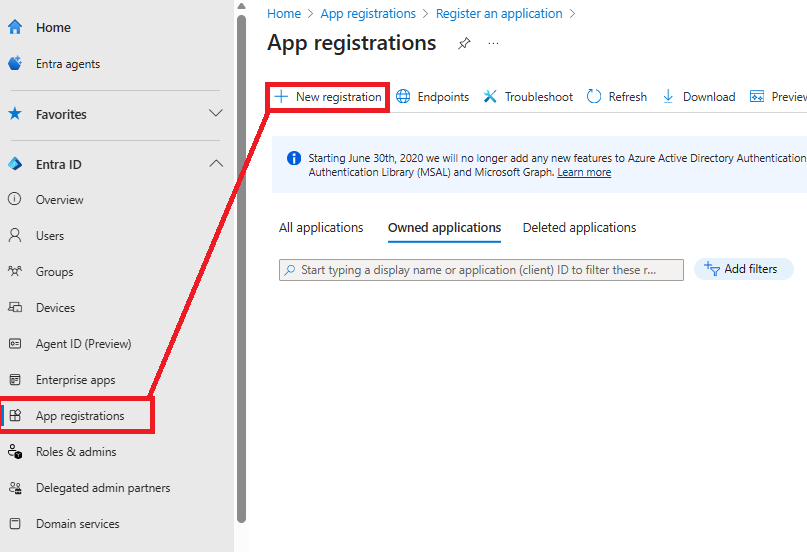
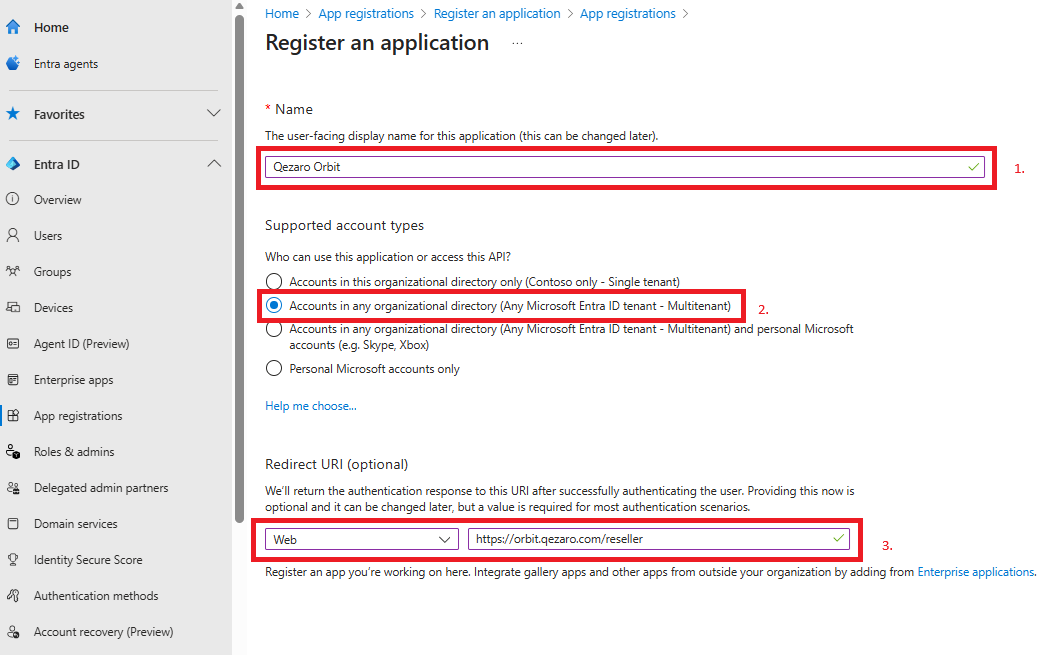
- Fill in the registration form:
- Name — give your app a recognizable name
- Supported account types — select "Accounts in any organizational directory (Any Microsoft Entra ID tenant - Multitenant)"
- Redirect URI — select Web from the dropdown and enter:
https://orbit.qezaro.com/reseller
2. Create a client secret
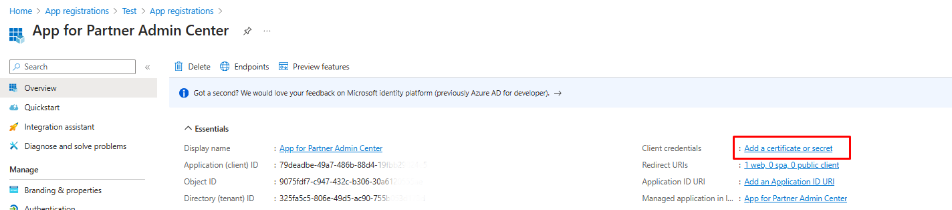
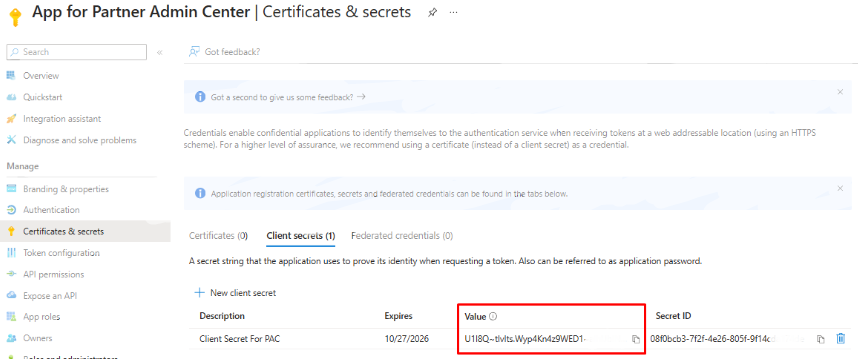
After registering the app, go to Certificates & secrets and create a new client secret.
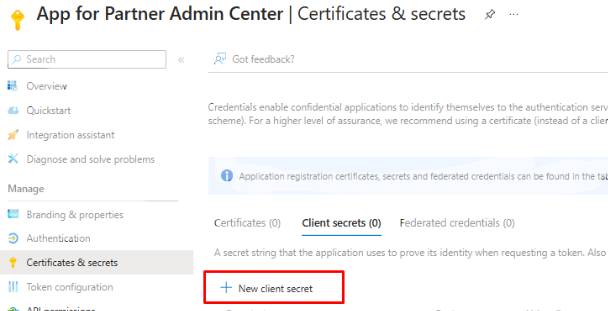
Give it a name and set an expiration date.

Save your secret immediately
Client secret values are only shown once — right after creation. Copy the Value field before navigating away from the page.
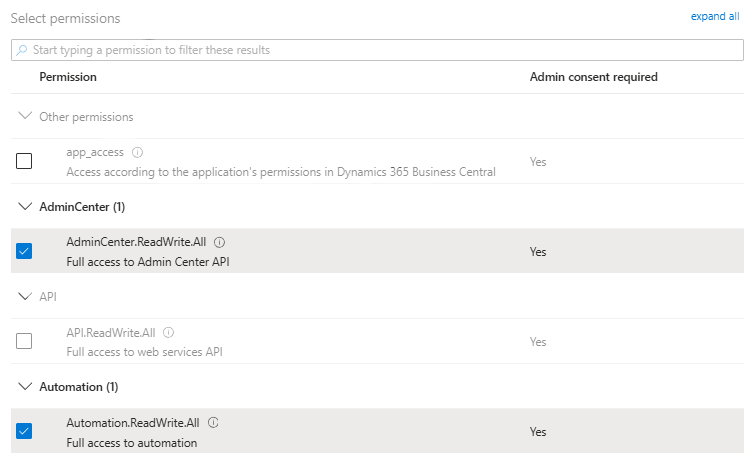
3. Grant API permissions
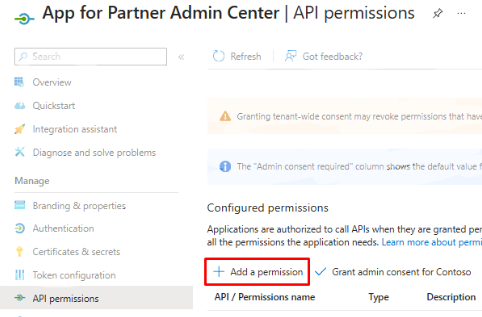
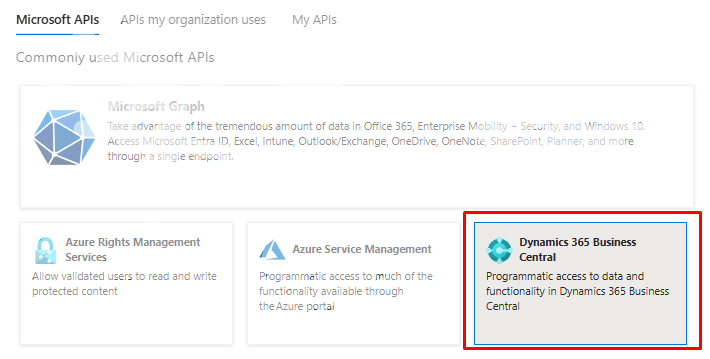
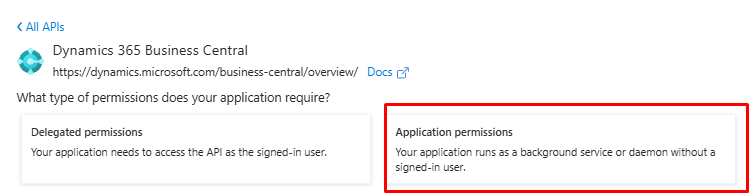
Next, grant the app the permissions it needs to make API calls to the Business Central Admin Portal.
4. Add the app to Orbit
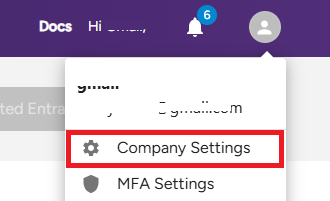
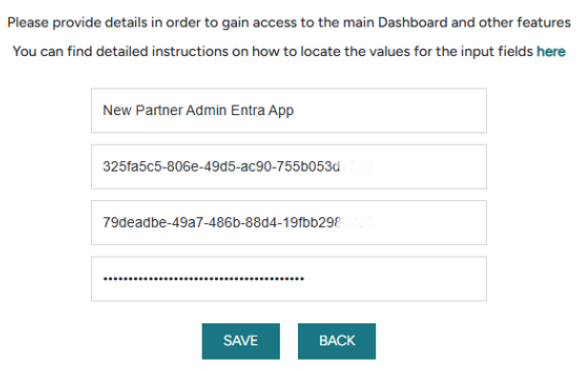
Once the app is set up in Entra, go to Company Settings in Orbit and enter the values you just created.
Copy the values directly from the Microsoft Entra admin center — Application (client) ID, Directory (tenant) ID, and the client secret value.
Option B — Use Qezaro's app
This is the fastest option. Orbit will create a unique Microsoft Entra app under its own tenant on your behalf.
In Orbit, go to Company Settings and click "Use Qezaro Created".
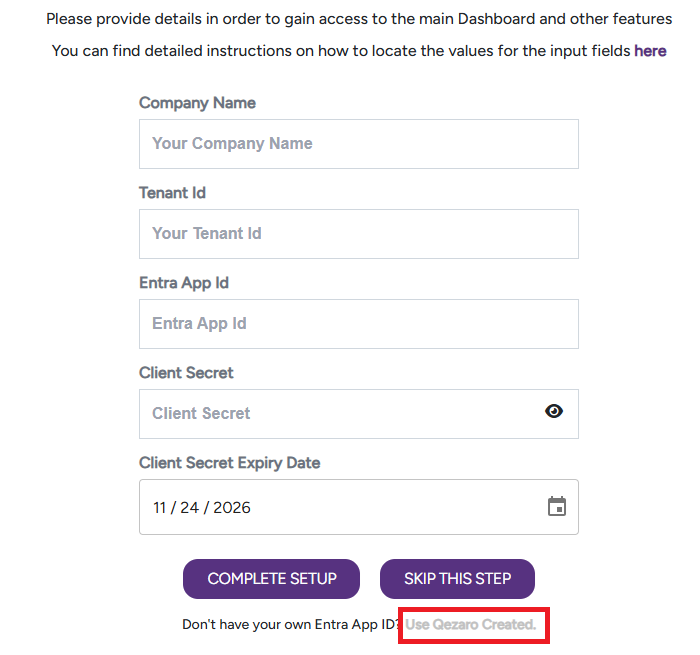
That's it — no additional configuration needed. Continue to Step 2.
Step 2 — Add customers
Add the customers whose environments Orbit will manage. You have three ways to do this:
Add a single customer
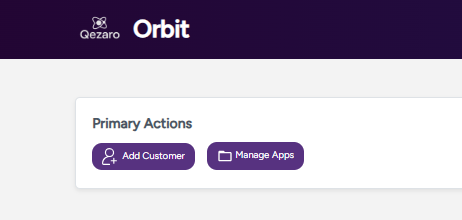
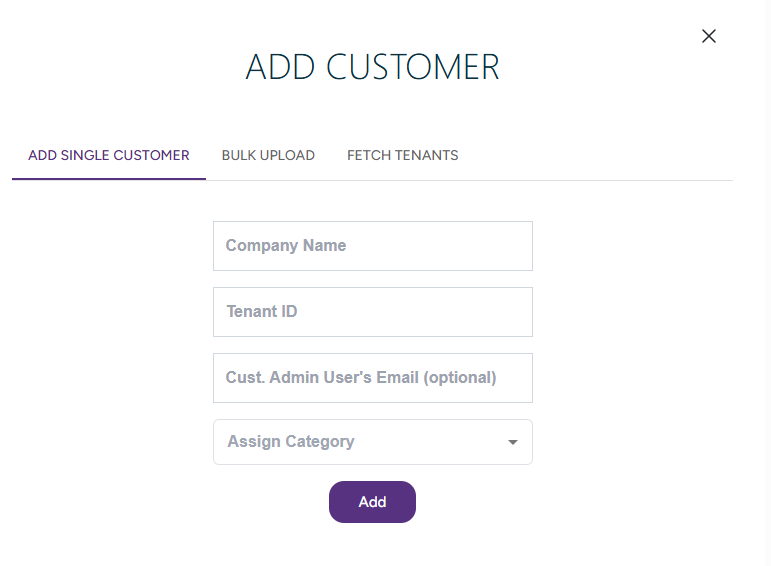
Click Add Customer → Add Single Customer and fill in the form:
| Field | Description |
|---|---|
| Company name | A label to help you identify the customer |
| Tenant ID | The customer's Microsoft Entra Tenant ID |
| Cust. Admin User's Email | (Optional) The customer admin's email — used later to request permissions via the built-in email feature |
| Assign Category | (Optional) The customer's category |
Bulk-add customers via Excel
Best for onboarding many customers at once.
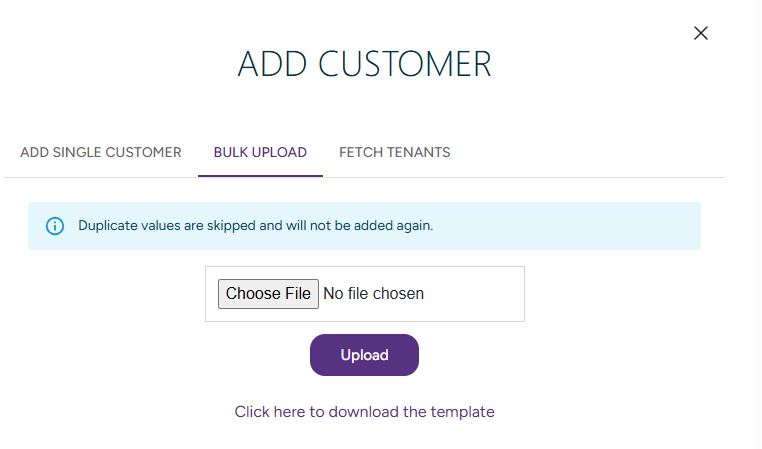
- Click Add Customer → Bulk Upload.
- Download the Excel template and fill in the columns:
| Column | Description |
|---|---|
| companyname | Customer's company name |
| TenantId | Customer's Tenant ID |
| AdminEmail | (Optional) Customer admin's email address |
| CategoryName | One or more categories, separated by semicolons (;) |
- Upload the completed file. Refresh the page to see the new customers appear.
Fetch customers from your Entra App
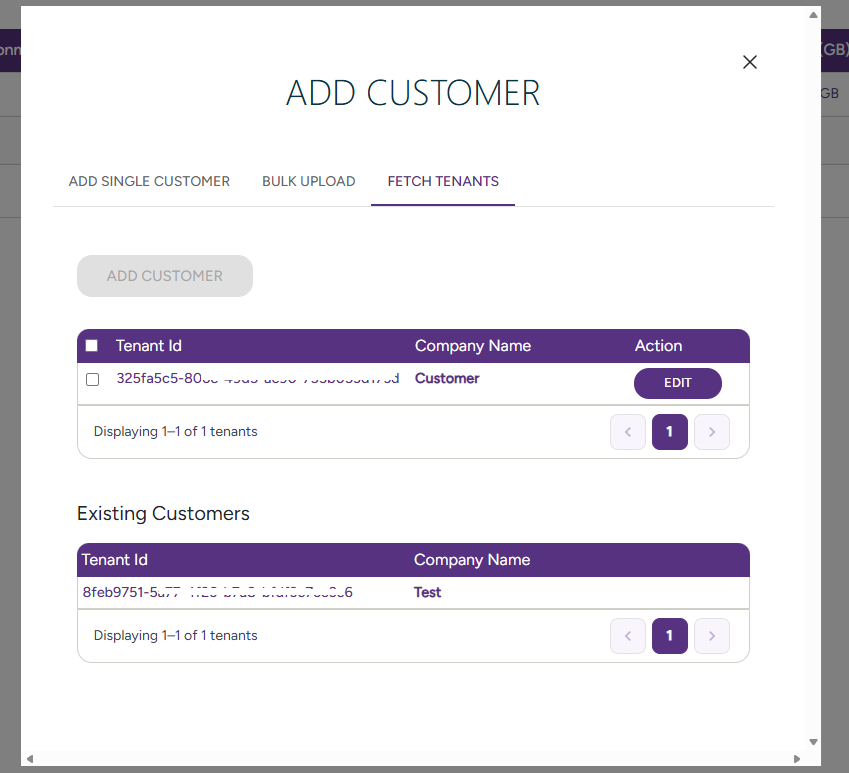
Use this if you've already granted admin consent and want to avoid entering Tenant IDs manually.
Click the Fetch Tenants button — Orbit will retrieve a list of customers your Entra App is authorized to manage. Select the right tenant, give the customer a name, and add them.
Step 3 — Authorize the Entra App
Each customer must authorize the Entra App before Orbit can access their data.
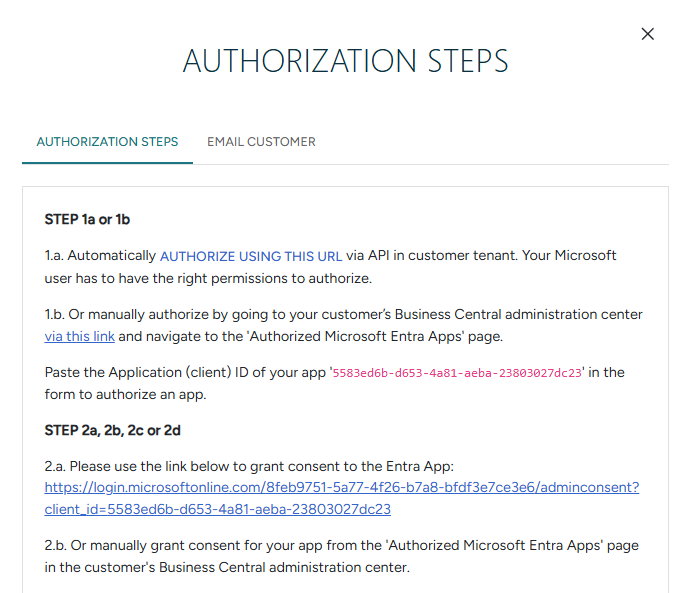
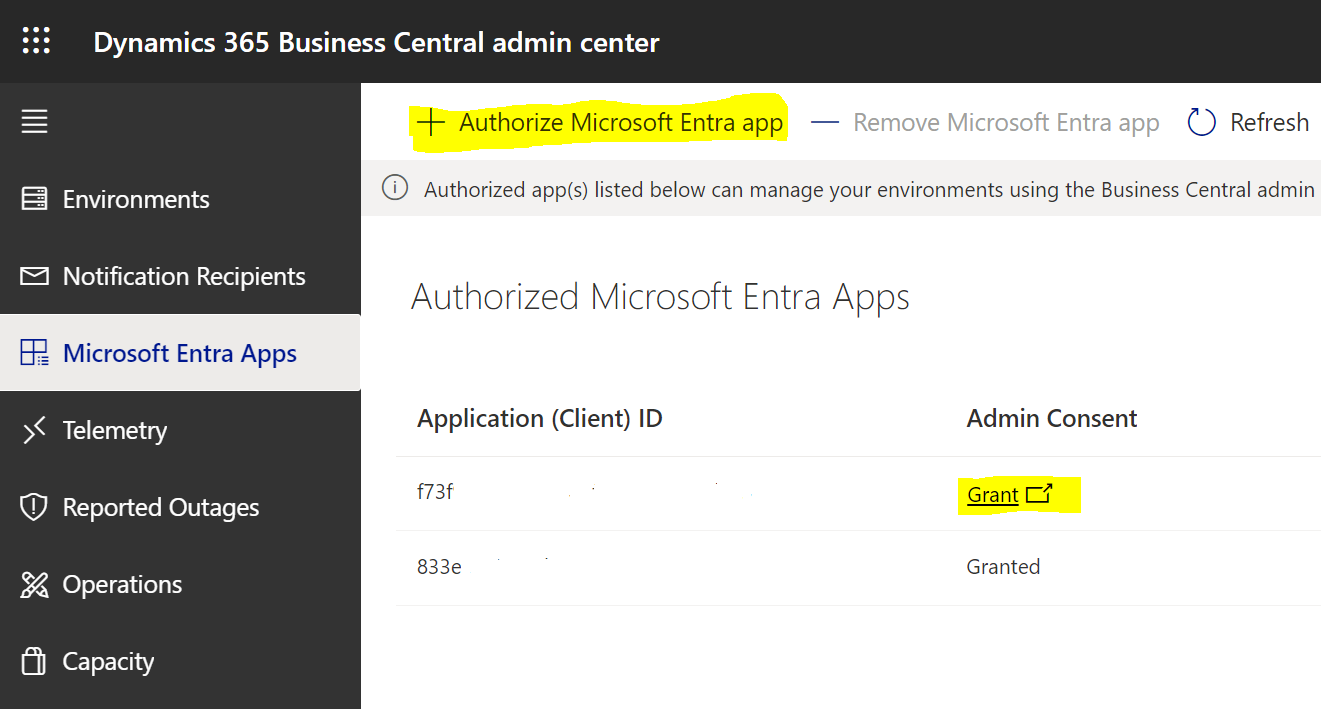
Go to the Authorization Steps page in Orbit. The page shows the App ID and step-by-step instructions for authorizing in each customer's Business Central Admin Center.
important
You'll need to do this for each customer individually — there's no bulk authorization.

Required roles
To authorize the app in a customer's tenant, you need the Dynamics 365 Administrator or Cloud Application Administrator role in that tenant.
If you don't have this role, ask the customer's administrator to authorize the app in their Business Central Admin Center.
Step 4 — Grant Admin Consent
The last permission step: granting admin consent for each customer. You'll do this per customer.
If you have access (DAP relationship, or Global Admin / Cloud Application Administrator role in the customer's tenant): Grant consent directly from the Authorized Microsoft Entra Apps page in the Business Central Admin Center.
If you don't have access: Share the URL from the customer's Authorization Steps page and ask their administrator to grant consent.
important
The Dynamics 365 Administrator role is not sufficient to grant admin consent. You need either Global Administrator or Cloud Application Administrator in the customer's tenant — or the customer must grant consent themselves.
Step 5 — Run Global Sync
You're almost done! The final step is to trigger a sync to start pulling data into Orbit.
- Global Sync — syncs all customers at once
- Individual Sync — syncs a specific customer
Once the sync completes, refresh your browser to see the data populate.
tip
If you don't see any data after syncing, wait a moment and do a hard refresh (Ctrl+Shift+R / Cmd+Shift+R).